External Drives, SSDs and NAS: A Beginner's Guide
By GigaGone Editorial Team Published Topic: Drives & NAS
External hard drives (HDDs) offer the lowest cost per terabyte for large backups, portable SSDs deliver faster transfers and shock resistance for travel, and a Network Attached Storage (NAS) box provides shared, always-on storage for multiple devices on your home network. Every drive eventually fails, so local hardware should always be paired with a second backup copy.
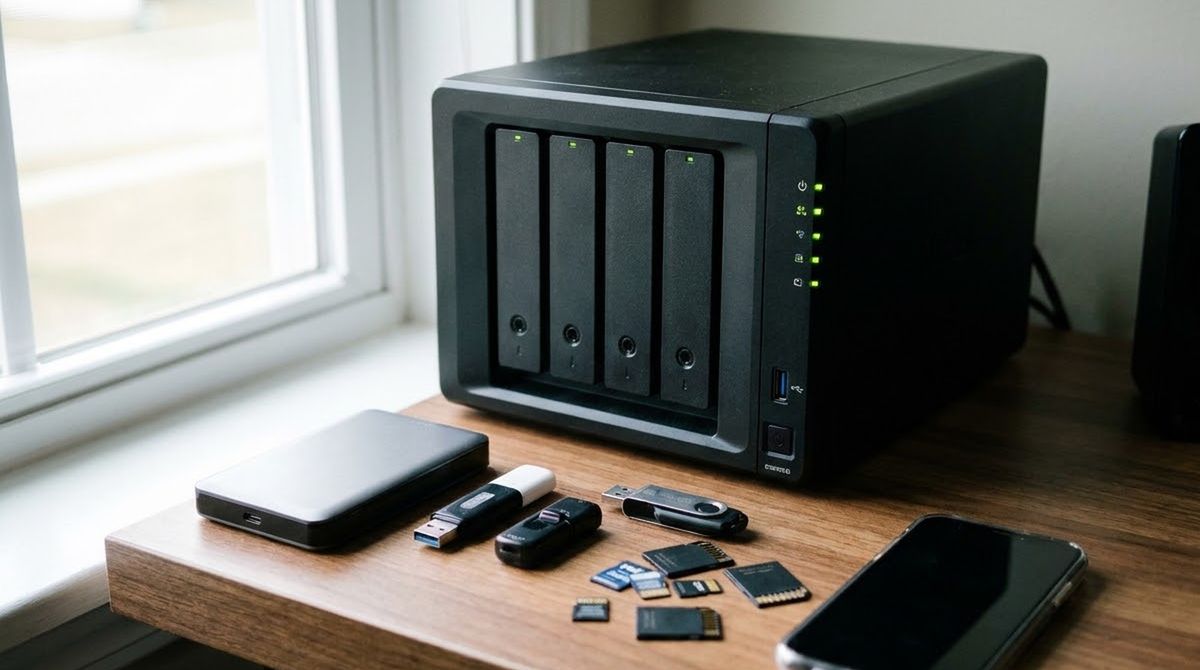
Choosing between an external hard drive, a portable SSD, and a home NAS comes down to three practical questions: how many terabytes you need to store, whether the drive will sit on a desk or travel in a bag, and how many devices need to back up to it.
This guide explains how each hardware type works, what real-world reliability data shows, and how local drives fit into a complete home backup plan.
External Hard Drives (HDD): Best Value for Large Backups
An external hard disk drive (HDD) stores data on spinning magnetic platters inside a plastic or metal enclosure. Because magnetic platter technology is mature, HDDs offer the lowest cost per terabyte—especially at 2 TB, 4 TB, 8 TB, and above.
- Portable 2.5-inch HDDs (1 TB–5 TB): Powered directly by a single USB cable, small enough for a drawer, and easy to unplug for offline storage.
- Desktop 3.5-inch HDDs (4 TB–20 TB+): Require a wall power adapter, sit permanently on a desk, and offer the lowest price per terabyte for full computer and photo-archive backups.
- Main weakness: Moving parts. Dropping a spinning HDD—especially while it is plugged in and writing data—can permanently damage the read/write heads.
Portable SSDs: Best for Speed, Travel, and Daily Use
A solid-state drive (SSD) stores data on flash memory chips with no spinning platters or moving arms. Portable SSDs connect over USB-C or USB-A and are smaller than a deck of cards.
- Much faster transfers: Copying 100 GB of photos or 4K videos to a USB 3.2 Gen 2 portable SSD takes minutes rather than tens of minutes on a spinning HDD.
- Shock-resistant: With no moving parts, an SSD survives normal bumps in a backpack.
- Higher cost per terabyte: Expect to pay noticeably more per terabyte than for a spinning HDD, which makes SSDs ideal for active projects, travel backups, or 1 TB–2 TB laptops, while HDDs remain better for multi-terabyte archives.
What Is a Home NAS (Network Attached Storage)?
A NAS is a small, dedicated computer with one or more drive bays that plugs into your home router via Ethernet. Instead of plugging a USB cable into one laptop at a time, every computer and phone on your home Wi-Fi can reach the NAS over the network.
- Automatic multi-device backups: A Mac can run Time Machine over Wi-Fi, and Windows PCs can save backups to a shared network folder without plugging in cables.
- Shared family library: Multiple household members can store photos, videos, and documents in private folders on the same box.
- Expandable bays: Two-bay and four-bay NAS enclosures let you add drives or mirror them (RAID) so the NAS keeps running if one drive fails.
Why a NAS with RAID Is Still Not a Backup
RAID mirroring copies your data across two or more drives inside the same NAS box so you do not lose access if one drive dies mechanically. However, RAID does not protect you against:
- Accidental deletion (deleting a file deletes it from all mirrored drives immediately)
- Ransomware encrypting the shared folder over the network
- A power surge, flood, or theft affecting the whole NAS box
For true protection, CISA’s (US-CERT) Data Backup Options paper recommends the 3-2-1 rule: three copies of your data (one primary and two backups), on two different media types, with one copy offsite. CISA’s ransomware guide separately advises keeping offline, encrypted backups. A NAS can serve as your primary local backup copy, paired with either an unplugged USB drive or a cloud storage or backup plan.
What Drive Failure Data Tells Us
Every storage device—whether a cheap USB stick, a desktop HDD, or an enterprise SSD—wears out or fails eventually.
In Backblaze’s ongoing public Drive Stats dataset covering more than 350,000 monitored spinning hard drives (Q2 2026 report), the overall annualized failure rate (AFR) was 1.73%. That means in any given year, roughly 1 to 2 out of every 100 drives fail completely. Most drives last several years, while a small percentage fail unexpectedly early without warning.
Because failure is a question of when rather than if, never keep your only copy of irreplaceable family photos or tax records on a single external drive. If a drive starts clicking, disconnecting randomly, or throwing read errors, stop writing to it and read our Data Loss and Recovery guide.
Sizing, Formatting, and Capacity Tips
1. Size Your Drive for Growth and Headroom
If your computer currently uses 400 GB, a 500 GB backup drive will fill up almost immediately once version history and future photos are added. A practical rule of thumb is to buy a backup drive that is at least 2x to 3x the size of the data you are backing up today. Use our Backup Storage Estimator to calculate your exact need.
2. Expect “Smaller” Numbers on Windows
A drive labeled 1 TB contains 1,000,000,000,000 bytes (decimal). Windows calculates storage in binary powers of two and displays that same drive as roughly 931 GB (more accurately 931 GiB). Nothing is broken or missing—see our plain-English storage size guide or test any drive size in the GB vs GiB Converter.
3. Back Up First Before Formatting
Formatting a drive erases everything on it. Always back up existing files to another location first before changing a drive’s file system (for example, switching between NTFS for Windows, APFS for Mac Time Machine, or exFAT for cross-platform file transfers).
Next Steps
- Calculate how much drive space you need with the Backup Storage Estimator.
- Set up a full protection routine using The Complete Guide to Backing Up Your Data.
- Compare off-site cloud options in Cloud Storage Compared.
Sources
- Backblaze Hard Drive Reliability & Test Data Hub
- NIST: Prefixes for Binary Multiples
- CISA (US-CERT): Data Backup Options
- CISA #StopRansomware Ransomware Guide
- Apple Support: How storage capacity is measured on Apple devices
- Western Digital Support: Available Capacity of the Drive is Smaller than the Drive Label
| Feature | External HDD (Spinning Disk) | Portable SSD (Flash) | Home NAS (Network Box) |
|---|---|---|---|
| Cost per TB | Lowest (best for 4 TB–20 TB+) | Higher (best for 500 GB–4 TB) | Highest upfront (enclosure + drives) |
| Speed | Moderate (fine for backups) | Fast (best for large video/photo transfers) | Limited by home Wi-Fi or Ethernet |
| Drop / Shock Resistance | Sensitive to drops while spinning | High (no moving parts) | Stationary on a shelf or desk |
| Multi-Device Access | One computer at a time via USB | One computer at a time via USB | Multiple phones and PCs over Wi-Fi/LAN |
| Ransomware Isolation | Easy when unplugged between backups | Easy when unplugged between backups | Always connected unless configured with snapshots/offline copy |
All Drives Nas guides
- Backblaze Drive Stats Explained for Home Users
How to read Backblaze's public Drive Stats: drive days, annualized failure rate, confidence and sample size, and what it means for a home backup drive.
- Do SSDs and USB Sticks Wear Out? What Manufacturers Say
SSDs and USB sticks do wear out, but slowly. See how TBW ratings work, Samsung's published figures, and why backups still matter.
- Drive Failure Warning Signs and What to Do Next
Clicking, freezing, vanishing files or a SMART warning can mean a drive is failing. Learn the signs, what to do first and when to call a professional.
- exFAT, NTFS and APFS: Formatting an External Drive for Windows, Mac and Linux
Which file system for an external drive? exFAT works on Windows and Mac; NTFS and APFS each favour one. Limits and steps, from Microsoft and Apple.
- HDD vs SSD for Backups: What the Failure Data Says
Should a backup drive be a hard disk or an SSD? What Backblaze's published failure data does and does not show, and a simple pick for home backups.
- How to Choose an External Drive for Backups
Pick an external drive for backups: capacity rule of thumb, HDD vs SSD, format, encryption and the habits that matter more than the model.
- NAS vs External Drive for Home Backup
NAS or external hard drive for home backup? Compare cost, setup, access, and why RAID is not a backup, with a pick for each kind of household.
- RAID Is Not a Backup: What RAID Does and Does Not Protect
RAID keeps a drive failure from stopping you, but it copies your mistakes too. See what RAID covers, what it misses and what a real backup adds.
- What Is a NAS and Do You Need One at Home?
A NAS is a small always-on storage box on your home network. See what it does, how it differs from an external drive, and who really needs one.
Questions readers ask
Should I buy an HDD or an SSD for home backups?
Buy an external spinning hard drive (HDD) if you need 4 TB or more of backup space on a budget and plan to keep the drive on a desk. Buy a portable SSD if you travel with the drive, want faster file transfers, or only need 1 TB to 2 TB.
Is a NAS a complete backup by itself?
No, a NAS is a network-connected storage server, not a complete backup strategy on its own. Even a two-bay NAS with mirrored drives (RAID) does not protect against fire, theft, power surges, accidental deletion, or ransomware—you still need an external or off-site copy.
Why does my new 1 TB external drive show only 931 GB on Windows?
Your drive is not missing space; drive makers measure capacity in decimal terabytes (1,000,000,000,000 bytes), while Windows divides by binary gibibytes (1,073,741,824 bytes) and labels the result GB. On macOS, the same 1 TB drive displays close to 1 TB.
How long does an external hard drive last?
Drive lifespan varies widely, and any drive can fail in its first year or last more than five years. Large-scale data from Backblaze shows an annualized failure rate around 1% to 2% across active drives, which is why you should never rely on a single drive as your only copy.
Can I use the same external drive on both Windows and Mac?
Yes, if you format the drive as exFAT, both Windows and macOS can read and write to it without extra software. However, Time Machine cannot back up to a Windows-formatted drive and will offer to reformat it as a Mac format such as APFS, which Windows cannot read natively—back up any existing files before reformatting any drive.
Do SSDs lose data if left unplugged for years?
Flash memory in SSDs and USB thumb drives holds data using electrical charges that can slowly leak over long periods without power, especially in warm environments. For multi-year cold storage, spinning hard drives or actively refreshed backups are generally safer.
Further reading
- Backblaze Hard Drive Reliability & Test Data Hub (backblaze.com)
- NIST: Prefixes for Binary Multiples (physics.nist.gov)
- CISA (US-CERT): Data Backup Options (cisa.gov)
- CISA #StopRansomware Guide (cisa.gov)
- Apple Support: How storage capacity is measured on Apple devices (support.apple.com)
- Western Digital Support: Available Capacity of the Drive is Smaller than the Drive Label (support-en.westerndigital.com)
Worth reading next
- Backblaze Drive Stats Explained for Home Users
How to read Backblaze's public Drive Stats: drive days, annualized failure rate, confidence and sample size, and what it means for a home backup drive.
- Drive Failure Warning Signs and What to Do Next
Clicking, freezing, vanishing files or a SMART warning can mean a drive is failing. Learn the signs, what to do first and when to call a professional.
- exFAT, NTFS and APFS: Formatting an External Drive for Windows, Mac and Linux
Which file system for an external drive? exFAT works on Windows and Mac; NTFS and APFS each favour one. Limits and steps, from Microsoft and Apple.
- How to Choose an External Drive for Backups
Pick an external drive for backups: capacity rule of thumb, HDD vs SSD, format, encryption and the habits that matter more than the model.
- HDD vs SSD for Backups: What the Failure Data Says
Should a backup drive be a hard disk or an SSD? What Backblaze's published failure data does and does not show, and a simple pick for home backups.
- NAS vs External Drive for Home Backup
NAS or external hard drive for home backup? Compare cost, setup, access, and why RAID is not a backup, with a pick for each kind of household.