The 3-2-1 Backup Rule Explained for Home Users
By GigaGone Editorial Team Review by GigaGone Editorial Team Most recently reviewed Published Topic: Backup Guides
The 3-2-1 backup rule means keeping three total copies of your important files across two different types of storage media, with at least one copy stored off-site. Following this structure reduces the risk of losing photos, documents, and personal records to a failed drive, accidental deletion, theft, or house fire. Adding an offline copy also helps protect against ransomware.
Part of the guide: The Complete Guide to Backing Up Your Data
Note: General information, not professional IT, security or legal advice; for a failing drive, a ransomware incident or a compromised account, contact the vendor’s support, your IT provider or a qualified professional. Reviewed by the editorial desk against the cited sources. See our editorial policy.
The 3-2-1 backup rule is the simplest way to avoid losing irreplaceable files to a single mistake or hardware failure. As part of our complete guide to backing up your data, this rule gives home users a clear target: 3 copies of your data, on 2 different media types, with 1 copy off-site.
Most people only discover a gap in their backups after a laptop stops booting, a phone is lost, or a folder is deleted by mistake. Keeping one extra copy on a desk next to your computer helps if the computer fails, but it does not help if a storm, fire, or theft hits the room. The 3-2-1 rule closes those gaps without requiring enterprise hardware.
What Each Number in 3-2-1 Means
3: Keep Three Total Copies
Your first copy is the working file on your phone, Windows PC, or Mac. The other two copies are backups. Having only one backup means you are one drive failure away from having no backup at all—especially during a restore, when your remaining drive is working hardest.
2: Use Two Different Storage Media Types
Storing two backups on two partitions of the same hard drive does not count, because both partitions die if the physical drive fails. Using two different media types spreads the risk:
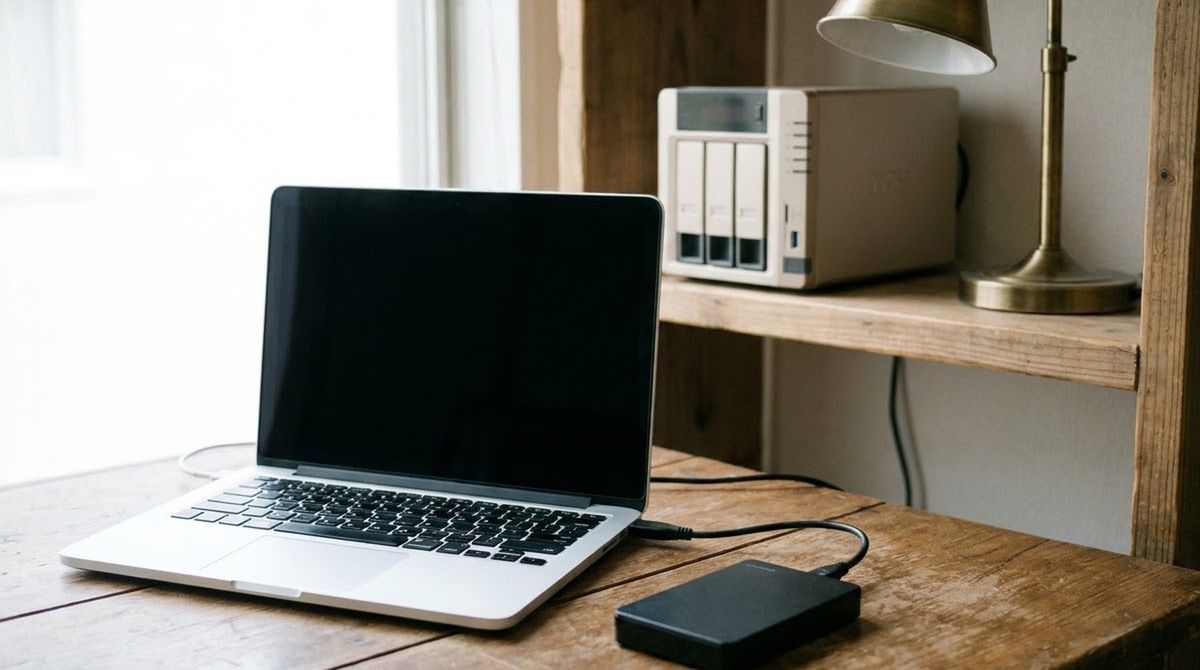
- Internal drive + external USB drive: Your laptop SSD plus a plugged-in USB hard drive or SSD.
- Internal drive + NAS: Your desktop plus a network-attached storage (NAS) box on your home router.
- Local drive + cloud storage: Your phone or computer plus a cloud account.
1: Store One Copy Off-Site
At least one backup must live outside your home. If your house experiences a fire, flood, power surge, or burglary, local drives in the same building can be lost together. Off-site options for home users include:
- A cloud account (such as iCloud, Google One, or OneDrive, with an understanding of how sync differs from backup).
- A second external drive kept at a trusted relative’s house or in a safe deposit box and swapped periodically.
Why Modern Guidance Adds an Offline Copy
Cybersecurity agencies such as CISA emphasize in the #StopRansomware Guide that ransomware actively looks for connected drives and mapped network folders to encrypt or delete them alongside your main files. If your external backup drive stays plugged into your PC all day, malware on the PC can reach it.
For stronger protection at home, add one simple habit to your 3-2-1 plan: keep at least one backup copy offline (air-gapped) by unplugging your external backup drive after the backup finishes. You can read more about isolating backups in our ransomware and backups guide.
How to Build a 3-2-1 Setup at Home
You do not need to back up everything at once. Before you delete old files or reorganize drives, always back up first so a wrong click cannot wipe out your only copy.
Checked on 2026-11-14, here is a practical 3-2-1 workflow for any home computer (Windows, macOS, or Linux) and phone:
- Decide what needs 3-2-1 protection: List your irreplaceable files—usually photos, videos, tax records, IDs, and personal documents. Skip apps and system files you can redownload.
- Estimate your total gigabytes: Use our Backup Storage Estimator to add up your current photo, video, and document sizes plus a few years of growth.
- Set up your local backup (Copy 2): On a Mac, connect an external drive and turn on Time Machine. On a Windows PC, set up File History or Windows Backup. Choose an external drive with enough room for multiple versions; see our guide on choosing an external drive for backups.
- Set up your off-site copy (Copy 3): Back up your photos and key folders to an off-site cloud account or a second external drive stored outside your home. Be sure you understand the difference between how cloud storage differs from cloud backup so accidental deletions do not catch you off guard.
- Disconnect one backup drive after updating: If you use an external USB drive for your offline copy, eject it safely through your operating system and unplug the cable once the backup completes.
- Map your copies: The 3-2-1 backup plan builder turns your devices and drives into a copy-by-copy plan you can print.
- Test a restore every few months: Pick one folder or a handful of photos from your backup and restore them to a test folder on your desktop to confirm the files open cleanly.
Real-World 3-2-1 Examples for Home Setups
You do not need expensive equipment to meet 3-2-1. Here is how common households set it up:
- Mac household: Your Mac’s internal SSD is Copy 1. A dedicated external USB drive running Time Machine is Copy 2 (local, different media). An off-site cloud account or a second external drive kept at a relative’s house is Copy 3 (off-site).
- Windows PC household: Your PC’s internal drive is Copy 1. An external USB drive running File History—unplugged between weekly backups—is Copy 2. Your key folders synced to OneDrive or backed up off-site are Copy 3.
- Phone-first household: Photos and videos on your iPhone or Android phone are Copy 1. Your cloud photo library is Copy 2 (off-site). Importing full-resolution photos to a home computer and an external drive is Copy 3 (local).
Common 3-2-1 Mistakes Home Users Make
- Counting two-way cloud sync as your only backup: Syncing mirrors deletions. If you delete a photo on your phone to clear space, a synced cloud library often removes it from the cloud too. See our photo and video backup guide for safer ways to archive media.
- Leaving the backup drive plugged in permanently: A drive that is always connected protects against your main drive dying, but not against ransomware, electrical surges, or accidental formatting.
- Skipping restore checks: A backup that fails silently—or an encrypted backup whose password you forgot—cannot help you when you need it.
Related Guides
Questions readers ask
What does 3-2-1 stand for in backups?
The numbers stand for three total copies of your data (your original files plus two backups), stored on two different types of storage media (such as your computer's internal drive and an external USB drive or cloud storage), with at least one copy kept off-site away from your home. This avoids relying on a single drive or a single location.
Does cloud sync count as my off-site backup?
Cloud storage services like iCloud Drive, Google Drive, or OneDrive can serve as an off-site copy, but two-way sync has an important catch: if you delete a file on your computer or ransomware encrypts it, that change usually syncs to the cloud. Pairing cloud storage with version history or a disconnected local drive gives you stronger protection.
How often should I update my offline external drive backup?
Most home users do well updating a disconnected external drive once a week or once a month, depending on how often they add irreplaceable files like family photos or tax documents. Automated daily backups can run to an always-connected drive or cloud service, while your offline drive stays unplugged between manual backup sessions.
What is the 3-2-1-1-0 backup rule?
The 3-2-1-1-0 variation adds two extra checks to the classic 3-2-1 rule: one copy should be completely offline (air-gapped) or immutable so malware cannot alter it, and you should aim for zero errors by periodically testing a file restore. For home users, unplugging an external backup drive after each backup satisfies the offline requirement.
Do I need 3-2-1 backups for every file on my phone or computer?
No. Operating system files and downloaded apps can be reinstalled from Apple, Microsoft, or Google if a drive fails. Focus your 3-2-1 plan on irreplaceable personal data: family photos and videos, tax and financial records, legal documents, schoolwork, and personal projects. Separating personal data from system files also keeps your backup storage costs lower.
Does the 3-2-1 rule work on Windows, Mac, and Linux?
Yes. The 3-2-1 rule is a storage strategy rather than a specific app, so it works on any operating system—Windows, macOS, or Linux—as well as phones and tablets. You simply pair your device's built-in backup tool or file-copy workflow with an external drive and an off-site copy.
Further reading
- Level Up Your Defenses: Five Cybersecurity Best Practices | CISA (cisa.gov)
- #StopRansomware Guide | CISA (cisa.gov)
- I've Been Hit By Ransomware! | CISA (cisa.gov)
- Cybersecurity Framework | NIST (nist.gov)
- Back up your Mac with Time Machine | Apple Support (support.apple.com)
- Back up and restore with Windows Backup | Microsoft Support (support.microsoft.com)
Worth reading next
- The Complete Guide to Backing Up Your Data
A plain guide to backing up phones, Windows PCs and Macs: what a backup is, the 3-2-1 idea, built-in tools and how to test them. Checked 2026-11-14.
- 3-2-1 Backup Plan Builder
Build a 3-2-1 backup plan for your phones and computers: how to count copies, pick two media types, add an off-site copy, and a worked example.
- How to Back Up an Android Phone
Step-by-step guide to backing up an Android phone using Google Backup, Google Photos, and a local USB copy to a Windows PC or Mac.
- Back Up Before a Reset or Upgrade: A Checklist
A step-by-step pre-reset backup checklist for iPhone, Android, Windows 11, and Mac so you do not lose photos, 2FA codes, or local files.
- How to Back Up an iPhone: iCloud and Computer
Step-by-step guide to backing up an iPhone using iCloud Backup, a Mac with Finder, or a Windows PC, plus what each method saves.
- How to Back Up a Mac With Time Machine
How to set up Time Machine on macOS with an external drive, choose the right drive size, enable encryption safely, and restore files when needed.