How to Free Up Storage Space on Any Device
By GigaGone Editorial Team Published Topic: Free Up Space
To free up storage, first open your device's own storage screen and see which categories are largest, then back up anything you want to keep, then remove or offload the biggest items you no longer need. Photos, videos, apps, downloads and old backups usually account for most of the space. Work in small batches and recheck the figure after each one.
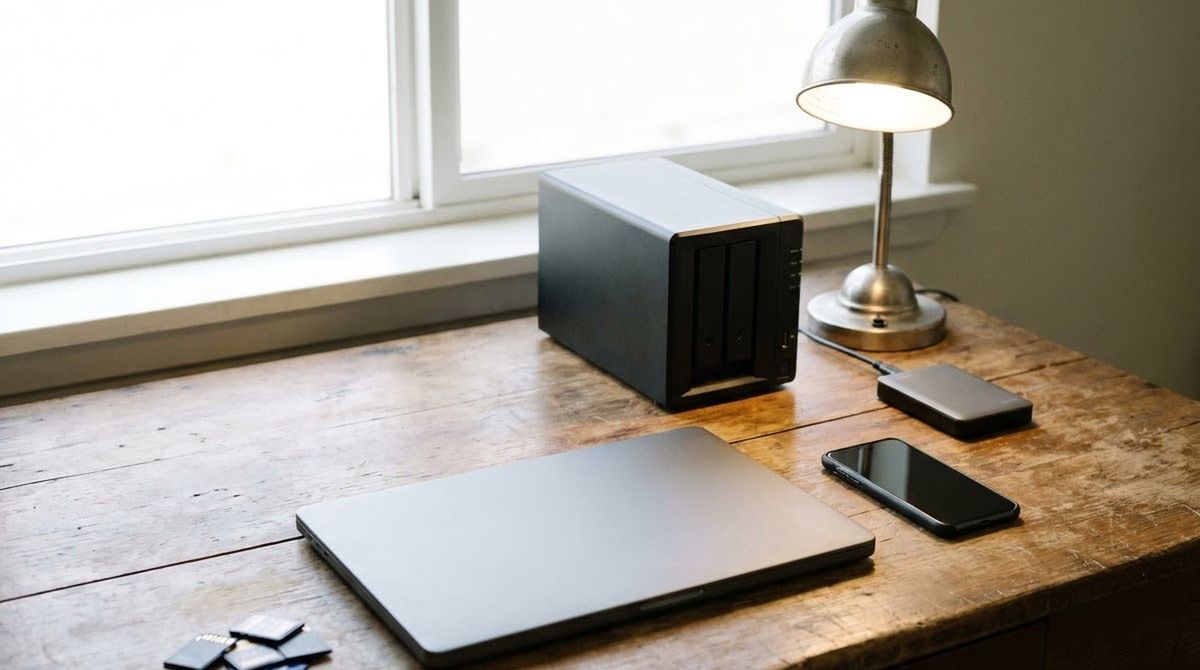
To free up storage safely, look before you delete: see what is filling the device, back up what you want to keep, and then remove the biggest things you no longer need. GigaGone is an informational site; we host no files, and this guide explains the settings your device already has. All steps below were checked against vendor documentation on 2026-11-14.
General information, not professional IT, security or legal advice; for a failing drive, a ransomware incident or a compromised account, contact the vendor’s support, your IT provider or a qualified professional.
Back up first
Deleting is the one step you usually cannot undo. Before removing photos, videos, documents or app data, confirm that a second copy exists somewhere that is not the device you are cleaning. Our complete guide to backing up your data covers phones, computers and drives. If you are in a hurry, copy your photos and documents to an external drive or confirm they have finished backing up, open one of them on another device, and only then start deleting.
A warning about sync: services such as iCloud Photos, Google Photos and OneDrive keep devices in step with each other, so a deletion on one device can delete the item everywhere. Sync is convenient, but it is not the same as a backup.
Step 1: See where the gigabytes went
Every platform has a storage screen that shows categories sorted by size. Use it before you install a cleaner app, because the built-in screen is free and knows your system.
- iPhone or iPad: Settings > General > iPhone Storage (or iPad Storage).
- Android: Settings > Storage.
- Windows 11: Settings > System > Storage.
- Mac: System Settings > General > Storage (macOS Ventura or later).
Write down the three largest categories. In most households they are photos and videos, apps and their data, and downloads or old backups. Fixing the largest one first gets you the most space for the least risk.
Free up space on iPhone and iPad
Checked on 2026-11-14 against Apple Support, iOS and iPadOS current at that date. Steps vary slightly by version.
- Back up the device first, or confirm your photos are safely stored elsewhere.
- Open Settings > General > iPhone Storage.
- Look at the Recommendations section. Turn on a suggestion or review the content it flags for deletion.
- Scroll the app list, which is sorted by size. For apps you rarely use, choose Offload App, which frees the app’s storage but keeps its documents and data so you can reinstall it later.
- For apps you no longer need, choose Delete App, which removes the app and its related data. Purchased apps can generally be downloaded again.
- Recheck the storage bar after each change.
Apple says you do not need to act on “System Data” or “Other” directly; remove unneeded apps and content instead. If space is still short, Apple notes you can install an update through a computer using Finder on a Mac or the Apple Devices app on a PC. For the iPhone side, see what System Data on iPhone is. On a Mac, Mac System Data works the same way.
Photos and videos are the biggest category for most people. Before deleting any, check how your phone is set up: if iCloud Photos is on, deletions sync to your other devices, so confirm you understand which copy you are removing.
Free up space on an Android phone
Checked on 2026-11-14 against Google Pixel Help. Some steps need Android 11 or later, and menus differ by manufacturer.
- Back up the phone first (Settings > Google > Backup) and check that photos are backed up in Google Photos.
- Open Settings > Storage to see what each category uses.
- Tap Free up space. You can open the menu and, in Settings, turn on Smart Storage, which clears backed-up photos and videos when storage runs low.
- Under a category, tap Select files (or Browse) and choose items to move to Trash. Review before you confirm.
- To remove on-device photo copies, delete them through Google Photos so that backed-up versions stay in the app.
- Uninstall apps you no longer use via Apps > See all apps. They can be reinstalled later.
- Clearing an app’s cache or data: Apps > See all apps > the app > Storage & cache. Clearing storage permanently deletes app data, so try deleting data inside the app first.
Smart Storage and photo deletion only help if your backup is working. Check it before you let any automatic clean-up run.
Free up space on Windows 11
Checked on 2026-11-14 against Microsoft Support. Wording can differ between Windows 11 versions.
- Back up your important files first. See back up before you delete.
- Open File Explorer, select This PC, and check Devices and drives to see how full each drive is.
- Open Settings > System > Storage and turn on Storage Sense, which can automatically remove things you do not need, such as temporary files and Recycle Bin contents.
- Open Cleanup recommendations. Review temporary files, large or unused files, cloud-synced files and unused apps, and remove only what you choose.
- Delete files you no longer need, or move large, rarely used files to a USB drive or SD card, and then empty the Recycle Bin.
- In Storage > Advanced storage settings, check Where new content is saved, and choose a drive with more free space if you have one.
- If you use OneDrive, Files On-Demand keeps small placeholders instead of full local copies of cloud files.
If you get a Low Disk Space error and the Temp folder fills quickly, Microsoft suggests resetting the Microsoft Store with wsreset.exe, running the Windows Update troubleshooter and restarting.
Be careful with automatic cleaning options: Storage Sense can delete files from Downloads or the Recycle Bin on a schedule, so read its settings before enabling them.
Free up storage on a Mac
Checked on 2026-11-14 against Apple Support, macOS Ventura or later.
- Back up first. Time Machine is the built-in option; see our backup guide.
- Open System Settings > General > Storage. Categories with a More Info button offer extra management options.
- Use Optimize Storage to let iCloud help free space when needed and to find large files you no longer need.
- Review Downloads and delete what you do not need.
- Remove movies, music or podcasts that you can stream or download again.
- Delete outdated iPhone or iPad backups kept on the Mac.
- Uninstall apps you no longer use.
- In Mail, choose Mailbox > Erase Junk Mail and then Erase Deleted Items.
- Empty the Trash. Trashed files do not free space until you do this.
Apple also notes that starting in safe mode clears certain system caches if you need temporary room for an update; restart normally afterward. A photo or video library can be moved to an external drive, but copy it and check that it opens before you delete the original.
What usually eats space, by category
- Photos and videos. The biggest category on most phones. A few minutes of high-resolution video can outweigh hundreds of photos. Our tools page covers calculators for working out how many fit in a given number of gigabytes.
- Apps and their data. Messaging, streaming and social apps store media and offline downloads. Clear these inside the app where possible.
- Downloads and installers. Disk images and installers linger long after use.
- Old device backups. Backups of old phones can occupy many gigabytes on a computer.
- System data and caches. Managed by the operating system; avoid aggressive cleaners.
Photos and videos in more detail
Because media is usually the largest category, it deserves a plan of its own. Work through it in this order. First, confirm that every photo and video you care about exists in a second place: a computer, an external drive, or a cloud service where you have checked that the item is stored and not only displayed as a thumbnail. Second, sort by size, since a handful of long videos can free more room than thousands of small photos. Third, delete in batches, such as a year at a time, and recheck the free-space figure so you can see what each batch recovers.
Be cautious with “optimize” or “recently deleted” features. Many devices keep deleted photos in a recently deleted album for a set period before permanently removing them, and the space is only freed when that period ends or you empty the album by hand. That protects you from mistakes, but it also means the storage figure may not change right after you delete. Check your device’s documentation for the exact retention period instead of assuming it.
Messaging and app media
Messaging, social and streaming apps quietly store photos, videos, voice notes and offline downloads. These often show up as the largest apps in the storage list. Look inside the app’s own settings for a storage or data screen, which usually lets you clear media older than a chosen date or remove offline downloads you have already watched. Doing this inside the app is generally safer than wiping the app’s data from system settings, because system-level clearing may also remove your login, settings and local-only content.
Common mistakes to avoid
- Deleting before checking the backup. The most costly mistake, and avoidable by restoring a single file first.
- Using a cleaner app that deletes system files. Built-in tools are enough for most devices, and aggressive cleaners can remove things your system needs.
- Treating sync as a backup. Deleting a synced photo can remove it from every device.
- Forgetting the recycle bin and trash. Items are only freed when emptied, though emptying makes recovery harder, so do it last.
- Ignoring the update headroom. A device with almost no free space may fail to install updates, so leave a margin.
When cleaning is not enough
If you free what you safely can and the device is still full, the options are to move media to an external drive, use a cloud plan for photos and files, or buy a larger device next time. Cloud plans are paid monthly and prices change, so check the vendor’s current pricing and whether it is a backup or only sync. Drive and unit questions, such as why a 1 TB drive shows less, are explained on our tools page.
A safe cleaning routine
- Confirm a recent backup, and open one backed-up file to prove it works.
- Look at the storage screen and pick the biggest category.
- Delete or offload in small batches.
- Recheck free space after each batch.
- Leave system folders and unknown files alone.
- Empty the trash or recycle bin only after you are sure.
New to all this? The Start Here page puts our guides in order. Reviewed by the editorial desk against the cited sources.
Frequently asked questions
Answers to the most common storage-full questions are below, along with the official sources we used.
All Free Up Space guides
- Clear App Cache and Offline Downloads on Phones
Learn how to clear app cache on Android, offload apps on iPhone, and remove offline streaming and messaging downloads without losing your data.
- How to Find and Remove Duplicate Photos Safely
Learn how to find and remove duplicate photos on iPhone, Mac, Android, and Windows safely—starting with a backup so you never lose originals.
- How to Find the Largest Files on Windows and Mac
Find the biggest files and folders on Windows 11 and macOS using File Explorer size filters, Storage settings, and Finder—no third-party software needed.
- How to Free Up Disk Space on Windows 11
Learn how to free up disk space on Windows 11 using Cleanup recommendations, Storage Sense, Disk Cleanup, and OneDrive Files On-Demand.
- How to Free Up iPhone Storage
Step-by-step ways to free up iPhone storage using built-in iOS tools, app offloading, Safari cache clearing, and photo optimization.
- How to Free Up Space on a Samsung Galaxy Phone
Free up storage on a Samsung Galaxy using Device care, Recycle bin cleanup, app cache clearing and My Files without risking your photos.
- How to Free Up Space on an Android Phone
Learn how to free up storage on an Android phone using Files by Google, Android Storage settings, app cache clearing, and Google Photos.
- How to Free Up Storage on a Mac
Learn how to free up storage on a Mac using macOS Storage settings, built-in optimization tools, Trash cleanup, and safe file offloading.
- What Is System Data on iPhone and Can You Reduce It?
Learn what iPhone System Data is according to Apple Support, why it grows, and safe ways to reduce bloated caches without losing files.
- What Is System Data on Mac and Can You Reduce It?
Learn what macOS System Data includes, why it grows with caches and Time Machine local snapshots, and safe ways to reduce it without breaking your Mac.
- Where Did My Gigabytes Go? Find What Is Using Your Storage
Find out what is filling your iPhone, Android, Windows 11, or Mac storage—from photos and offline downloads to system data and hidden caches.
- Windows Storage Sense: What It Deletes and How to Set It Up
Learn what Windows 11 Storage Sense deletes, how to configure Recycle Bin, Downloads, and OneDrive settings, and how to avoid losing files.
Questions readers ask
What should I delete first when my storage is full?
Start with the largest items you clearly no longer need and that you already have a copy of: old downloads, duplicate videos, apps you no longer use, and outdated device backups. Check your device's storage screen to sort by size, and back up your photos and documents before deleting anything you might want later.
Is it safe to clear cache?
Clearing an app cache is usually low risk, since the app rebuilds it, but the app may be slower the first time you reopen it. Clearing an app's storage or data is different: on Android it permanently deletes app data such as saved settings and local files. Back up first, and try deleting items inside the app before wiping its data.
What is System Data and can I delete it?
System Data (or Other) is a catch-all for caches, logs and files the system manages. Apple's guidance for iPhone is that you do not need to act on it directly and should remove unneeded apps and content instead. Its size often drops by itself over time. Avoid third-party cleaners that claim to purge it.
Will deleting photos from my phone delete them from the cloud?
It can. If your photos sync with iCloud Photos or Google Photos, deleting one on a synced device usually deletes it everywhere, which is how sync works. That is different from a backup. Check what your service does before deleting, and keep a separate copy of photos you cannot replace.
How much free space should I leave?
Vendors do not publish one universal figure, but devices need spare room for updates, caches and temporary files, and they slow or fail updates when nearly full. A common practical habit is keeping a margin of several gigabytes on a phone and more on a computer. Check what your update screen requests.
Is buying more cloud storage a fix?
It can help for photos and files that sync, but it does not free space on a device by itself unless you also remove local copies or use features that keep files online-only. Cloud plans also cost money every month, so compare current pricing with the cost of clearing or backing up to a drive.
Further reading
- Apple Support: Check storage on iPhone and iPad (support.apple.com)
- Microsoft Support: Free up drive space in Windows (support.microsoft.com)
- Apple Support: Free up storage space on your Mac (support.apple.com)
- Google Pixel Help: Free up space on your Android device (support.google.com)
Worth reading next
- Clear App Cache and Offline Downloads on Phones
Learn how to clear app cache on Android, offload apps on iPhone, and remove offline streaming and messaging downloads without losing your data.
- How to Find the Largest Files on Windows and Mac
Find the biggest files and folders on Windows 11 and macOS using File Explorer size filters, Storage settings, and Finder—no third-party software needed.
- How to Free Up iPhone Storage
Step-by-step ways to free up iPhone storage using built-in iOS tools, app offloading, Safari cache clearing, and photo optimization.
- How to Free Up Space on an Android Phone
Learn how to free up storage on an Android phone using Files by Google, Android Storage settings, app cache clearing, and Google Photos.
- How to Free Up Storage on a Mac
Learn how to free up storage on a Mac using macOS Storage settings, built-in optimization tools, Trash cleanup, and safe file offloading.
- How to Free Up Disk Space on Windows 11
Learn how to free up disk space on Windows 11 using Cleanup recommendations, Storage Sense, Disk Cleanup, and OneDrive Files On-Demand.