What Is a NAS and Do You Need One at Home?
By GigaGone Editorial Team Published Topic: Drives & NAS
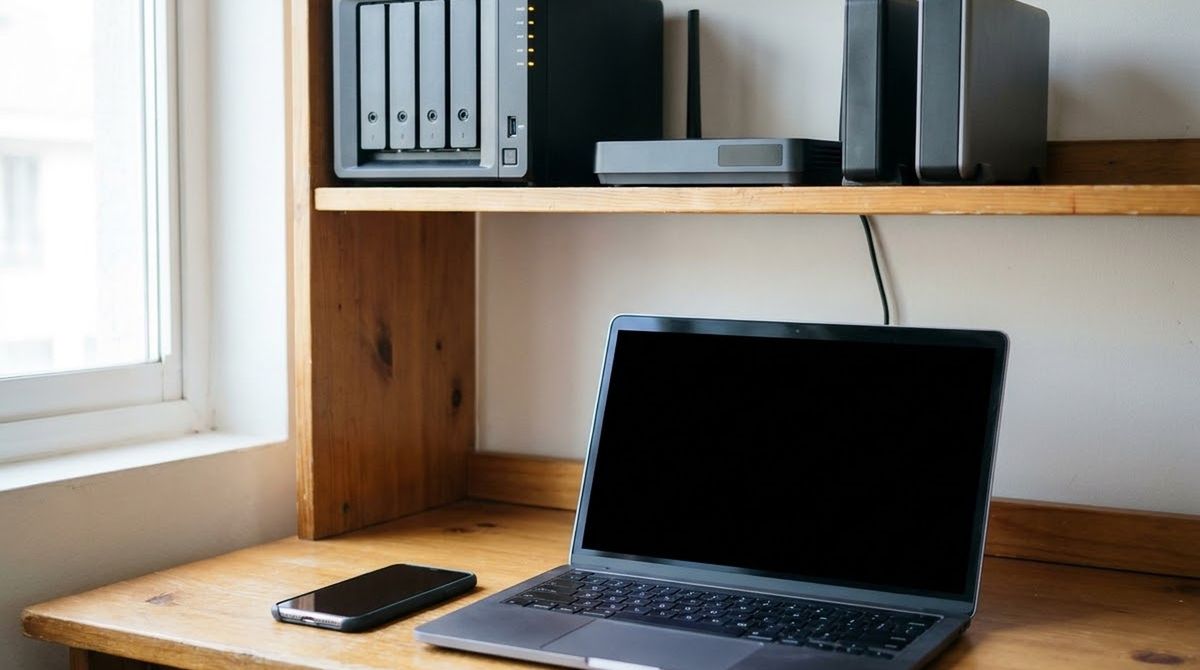
A NAS, or network attached storage, is a small computer with drives inside that stores files in one central place on your network, so every device at home can reach them. Most households do not need one. An external drive is simpler for one computer; a NAS earns its place with several devices, shared photos or media.
Part of the guide: External Drives, SSDs and NAS: A Beginner's Guide
A NAS is a small box with one or more drives inside that sits on your home network and keeps files in one central place. It is covered briefly in our external drives, SSDs and NAS guide; this page explains what it does and whether you need one. Many NAS units can mirror their drives with RAID, which protects against a drive failure but not against accidental deletion.
What a NAS is
NAS means network attached storage. Synology, a maker of them, describes it as a centralized location on a network to store data, and builds on that to offer a private cloud for storing, accessing, backing up and sharing files. In plain terms it is a tiny always-on computer whose job is to serve files to your other devices over your router.
NAS vs external drive
| External drive | NAS | |
|---|---|---|
| Connects to | One computer by USB or Thunderbolt | Your router, shared by many devices |
| Setup | Plug in | Install drives, set up software, accounts |
| Access | When connected | From anywhere on your network, and remotely if you enable it |
| Upfront cost | Lower | Higher (unit plus drives) |
| Best for | One or two computers | A household with shared files and media |
For a deeper comparison, see how to choose between a NAS and a USB drive. To pick a drive, read how to choose an external drive for backups.
What people use a NAS for at home
Synology’s home page lists these common uses:
- storing large amounts of data without monthly cloud storage fees
- sharing files and reaching them from a browser or phone
- backing up Macs with Time Machine and syncing files across devices
- backing up phone photos and videos
- connecting IP cameras for surveillance
Features vary by brand and model, so confirm what a specific unit supports.
A NAS is not a complete backup
A NAS is storage, and backups on it are one copy. RAID, where supported, keeps the unit running through some drive failures but does not undo a deleted folder, an overwritten file or a ransomware infection. CISA notes that many ransomware variants try to find and delete or encrypt accessible backups, which includes a network share that is always connected.
So treat a NAS as one place among several, and keep another copy somewhere else, ideally offline or off-site. Our three-copy backup method and ransomware and backups pages show how.
Do you need one?
Choose an external drive if:
- you have one or two computers
- you want the lowest cost and the least upkeep
- you only need a backup, not file sharing
Consider a NAS if:
- several people or devices share a growing library
- you want one backup target for the whole house
- you are comfortable maintaining updates, accounts and drive health
If you are unsure, start with an external drive and a second copy. You can add a NAS later and keep the drive as an extra copy.
What to check before buying
- Capacity. Estimate your data with the backup storage estimator, then allow room to grow. Labels are decimal, so usable space is lower; see why drives show less space.
- Bays and drives. The number of bays and drive types supported depends on the model; use the maker’s compatibility list.
- Updates and support. Check how long the maker supports the software.
- Where the second copy goes. Decide before buying.
Prices change often, so we do not list any. Check the maker’s current pages. If a NAS or its drives fail or are hit by an incident, contact the vendor’s support or a qualified professional.
FAQ
What does NAS stand for?
NAS stands for network attached storage. It is a small always-on device with one or more drives that connects to your router, so computers, phones and TVs on the home network can open the same files. It is closer to a tiny file server than to a plug-in USB drive, and it needs its own setup.
Is a NAS a backup?
Not by itself. A NAS can receive backups from your computers, but its own drives can fail, be stolen, or be affected by the same malware or mistake. Keeping one more copy somewhere else is still needed. See our 3-2-1 rule page, and remember RAID protects against some drive failures, not deletion.
Do I need a NAS for home backup?
Most people do not. One computer or two is well served by an external drive plus a cloud or off-site copy. A NAS makes sense when many devices share files, you hold a large photo or video library, or you want one central backup target for the whole household.
Is a NAS cheaper than cloud storage?
It can be over several years for large amounts of data, since Synology notes there are no monthly storage fees, but you pay upfront for the unit and drives, and for power. Prices change, so compare current listings and cloud plans on the vendor pages before deciding.
Can I use a NAS without technical skills?
Basic setups are designed for home users, with guided installers, but you will still manage drives, updates, user accounts and network settings. If that sounds like a chore, an external drive or a cloud service is the lower-effort choice. Always keep the unit’s software updated and check the maker’s setup guide.
What drives go in a NAS?
Synology says its units support both hard disks and SSDs. Which drives are compatible, and how many bays you need, depends on the model, so check the maker’s compatibility list before buying drives. Capacity planning should start from how much data you hold, using a tool like our backup storage estimator.
Sources
- Synology: What is NAS (home)
- CISA: #StopRansomware Guide
- Apple Support: Back up your Mac with Time Machine
Linux has its own native tooling for sharing and backups; this site does not cover it.
Related
Questions readers ask
What does NAS stand for?
NAS stands for network attached storage. It is a small always-on device with one or more drives that connects to your router, so computers, phones and TVs on the home network can open the same files. It is closer to a tiny file server than to a plug-in USB drive, and it needs its own setup.
Is a NAS a backup?
Not by itself. A NAS can receive backups from your computers, but its own drives can fail, be stolen, or be affected by the same malware or mistake. Keeping one more copy somewhere else is still needed. See our 3-2-1 rule page, and remember RAID protects against some drive failures, not deletion.
Do I need a NAS for home backup?
Most people do not. One computer or two is well served by an external drive plus a cloud or off-site copy. A NAS makes sense when many devices share files, you hold a large photo or video library, or you want one central backup target for the whole household.
Is a NAS cheaper than cloud storage?
It can be over several years for large amounts of data, since Synology notes there are no monthly storage fees, but you pay upfront for the unit and drives, and for power. Prices change, so compare current listings and cloud plans on the vendor pages before deciding.
Can I use a NAS without technical skills?
Basic setups are designed for home users, with guided installers, but you will still manage drives, updates, user accounts and network settings. If that sounds like a chore, an external drive or a cloud service is the lower-effort choice. Always keep the unit's software updated and check the maker's setup guide.
What drives go in a NAS?
Synology says its units support both hard disks and SSDs. Which drives are compatible, and how many bays you need, depends on the model, so check the maker's compatibility list before buying drives. Capacity planning should start from how much data you hold, using a tool like our backup storage estimator.
Further reading
- Synology: What is NAS (home) (synology.com)
- CISA: #StopRansomware Guide (cisa.gov)
- Apple Support: Back up your Mac with Time Machine (support.apple.com)
Worth reading next
- External Drives, SSDs and NAS: A Beginner's Guide
Learn the difference between external hard drives, portable SSDs, and home NAS boxes, with failure-rate context and advice on choosing backup hardware.
- Backblaze Drive Stats Explained for Home Users
How to read Backblaze's public Drive Stats: drive days, annualized failure rate, confidence and sample size, and what it means for a home backup drive.
- Drive Failure Warning Signs and What to Do Next
Clicking, freezing, vanishing files or a SMART warning can mean a drive is failing. Learn the signs, what to do first and when to call a professional.
- exFAT, NTFS and APFS: Formatting an External Drive for Windows, Mac and Linux
Which file system for an external drive? exFAT works on Windows and Mac; NTFS and APFS each favour one. Limits and steps, from Microsoft and Apple.
- How to Choose an External Drive for Backups
Pick an external drive for backups: capacity rule of thumb, HDD vs SSD, format, encryption and the habits that matter more than the model.
- HDD vs SSD for Backups: What the Failure Data Says
Should a backup drive be a hard disk or an SSD? What Backblaze's published failure data does and does not show, and a simple pick for home backups.