A Simple Backup Plan for a Family of Four
By GigaGone Editorial Team Published Topic: Backup Guides
A family of four can follow the 3-2-1 backup rule with one shared family cloud plan for automatic phone and document syncing plus one shared external hard drive or home NAS for local computer backups. Sharing a single 2 TB cloud subscription keeps each person's account private while cutting per-person cost and maintenance.
Part of the guide: The Complete Guide to Backing Up Your Data
Managing backups for one phone is straightforward; managing four phones, two laptops, and a decade of family photos quickly turns into chaos unless the system runs automatically. This guide is part of our complete guide to backing up your data and lays out a simple, repeatable plan built around the 3-2-1 backup rule.
What a family of four actually needs to protect
Before buying drives or cloud plans, list what cannot be replaced if a device is lost, stolen, or fails:
- Photos and videos across up to four phones (often the largest share of family storage).
- Documents, schoolwork, and tax records on home laptops or desktops.
- Phone settings and app data (easier to restore onto a replacement phone).
- Account access and recovery codes (so nobody gets locked out of the shared family account).
To estimate your household’s exact gigabyte total before choosing a tier, plug your monthly photo and video habits into our Backup Storage Estimator.
The 3-2-1 setup for a four-person household
The 3-2-1 rule means keeping 3 copies of your data on 2 different media types, with 1 copy off-site. For a family of four, you can satisfy all three requirements with two building blocks:
- Copy 1 (Originals): The files living on each person’s phone and laptop.
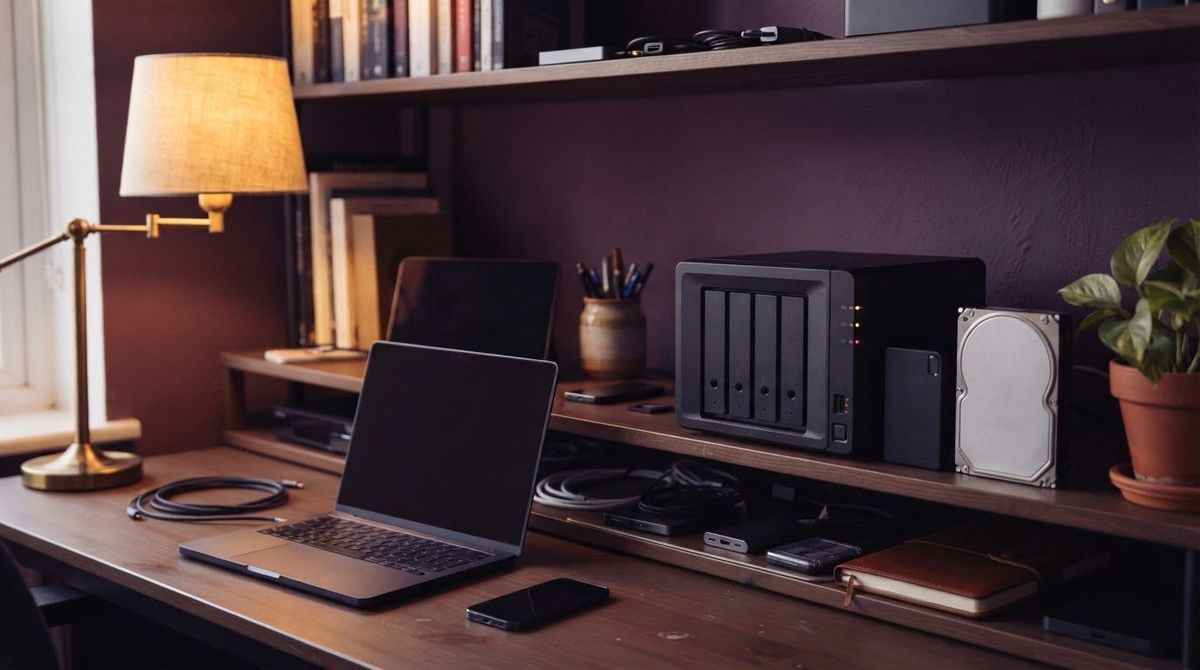
- Copy 2 (Local, different medium): One 4 TB or 8 TB external hard drive (or a home NAS) kept at home for computer backups and periodic photo exports.
- Copy 3 (Off-site): One shared family cloud storage plan (such as iCloud+ 2 TB or Google One) for automatic phone backups and synced documents.
If you want to keep an extra offline copy safe from ransomware or house fire, rotate a second external drive at a relative’s house every few months.
Step 1: Set up one shared family cloud plan
Pick the plan with the lowest cost per terabyte that fits your family’s total, using the cost comparer for cloud plans. Then lay out all copies in the family 3-2-1 plan builder.
Paying for four separate individual cloud plans costs more and creates four billing accounts to track. Both Apple and Google let you share a plan with up to five other family members; Google states your files are not visible to the family without your permission (checked on 2026-11-14):
- All-Apple household: Set up Apple Family Sharing and share an iCloud+ 2 TB plan ($9.99/month in the US as of 2026-11-14; check current pricing on Apple’s iCloud+ page). Each person keeps their own Apple Account. See how to back up an iPhone and how iCloud Photos differs from iCloud Backup to make sure everyone’s phone is covered.
- Android or mixed household: Set up a Google One family group (note: Google One Lite 30 GB does not support family sharing) so everyone shares storage across Google Photos, Drive, and Gmail without seeing each other’s files. Pair this with how to back up an Android phone.
For a side-by-side look at vendor quotas and pricing, compare plans in iCloud vs Google One vs OneDrive.
Step 2: Back up the family laptops locally
Cloud photo syncing does not protect your laptops’ local folders, tax PDFs, or full system setups. Set up automatic local backups on each computer:
- Mac: Connect a dedicated external drive and enable Time Machine; follow how to back up a Mac with Time Machine.
- Windows: Use Windows Backup and File History (or a local backup drive) following how to back up a Windows PC.
- Choosing hardware: Pick a drive at least double the combined size of the computers you are backing up—see how to choose an external drive for backups. If nobody wants to remember to plug in a USB cable, consider a home NAS (see what is a NAS).
Step 3: Add a quarterly photo export and restore test
Cloud sync is convenient, but because sync mirrors deletions, it is not an isolated archive. Once every quarter:
- Export or copy the family’s new photos from the last three months onto your local external drive (or verify your computer’s local photo library already downloaded full-resolution originals).
- Unplug the external backup drive when it is not actively backing up if you want an offline copy that ransomware cannot reach.
- Follow how to test a backup by restoring one random photo and one document from your backup drive to confirm the files open cleanly.
A 10-minute monthly maintenance checklist
- Confirm every phone shows a recent successful cloud backup in Settings.
- Check that no family member has hit 90% of the shared cloud quota (upgrade or clean up large videos before backups stall).
- Plug in each laptop to the local backup drive at least once a week (or let Time Machine / NAS backups run over Wi-Fi).
- Review how to back up your photos and videos whenever someone gets a new phone so nothing is left behind on the old device.
Questions readers ask
Can family members see each other's photos on a shared cloud storage plan?
No. Google says family members cannot access your files without your permission, and Apple Family Sharing shares iCloud+ with each person signing in to their own Apple Account (check Apple's Family Sharing page for storage-sharing details). Each family member signs in with their own Apple Account or Google Account, so their photos, emails, and backups remain private unless they explicitly choose to share an album or folder.
How much total storage does a family of four usually need?
Needs vary widely; as a rough planning guess, many families start with a 2 TB cloud plan plus a 4 TB external drive, but verify with the Backup Storage Estimator. You can dial in your household's exact photo, video, and document numbers using our Backup Storage Estimator.
Should we use one external hard drive per person or one shared drive?
One 4 TB or 8 TB external drive kept at home is usually simpler to maintain than four separate small drives, especially if you partition it or create separate folders per computer. For households with multiple laptops that rarely sit at the same desk, a home NAS lets everyone back up over Wi-Fi.
What if our family uses both iPhones and Android phones?
Mixed-device households can either use Google One (since Google Photos works on both iOS and Android) for photos alongside a small iCloud+ plan for iPhone device backups, or back up all phones to a home computer or NAS while keeping platform-specific device backups in the cloud.
How often should a family test its backups?
Check that automatic backups are running once a month and run a quick restore test—opening a backed-up folder or restoring one photo from your external drive—every quarter. Testing confirms your drives are healthy and passwords or encryption keys still work.
Further reading
- How to set up Family Sharing on your iPhone, iPad, or Mac — Apple Support (support.apple.com)
- iCloud+ plans and pricing — Apple Support (support.apple.com)
- Start or stop sharing with your family — Google One Help (support.google.com)
- Level Up Your Defenses (Back Up Data) — CISA (cisa.gov)
Worth reading next
- The Complete Guide to Backing Up Your Data
A plain guide to backing up phones, Windows PCs and Macs: what a backup is, the 3-2-1 idea, built-in tools and how to test them. Checked 2026-11-14.
- 3-2-1 Backup Plan Builder
Build a 3-2-1 backup plan for your phones and computers: how to count copies, pick two media types, add an off-site copy, and a worked example.
- The 3-2-1 Backup Rule Explained for Home Users
Learn how the 3-2-1 backup rule works at home: keep 3 copies of your files on 2 media types with 1 copy off-site to reduce the risk of data loss.
- How to Back Up an Android Phone
Step-by-step guide to backing up an Android phone using Google Backup, Google Photos, and a local USB copy to a Windows PC or Mac.
- Back Up Before a Reset or Upgrade: A Checklist
A step-by-step pre-reset backup checklist for iPhone, Android, Windows 11, and Mac so you do not lose photos, 2FA codes, or local files.
- How to Back Up an iPhone: iCloud and Computer
Step-by-step guide to backing up an iPhone using iCloud Backup, a Mac with Finder, or a Windows PC, plus what each method saves.